How to Turn Photos Into a Single PDF (JPG, PNG and WEBP)
Receipts, ID cards, handwritten notes, homework pages — combine any number of photos into one neat PDF, in the order you want, with proper page sizes.
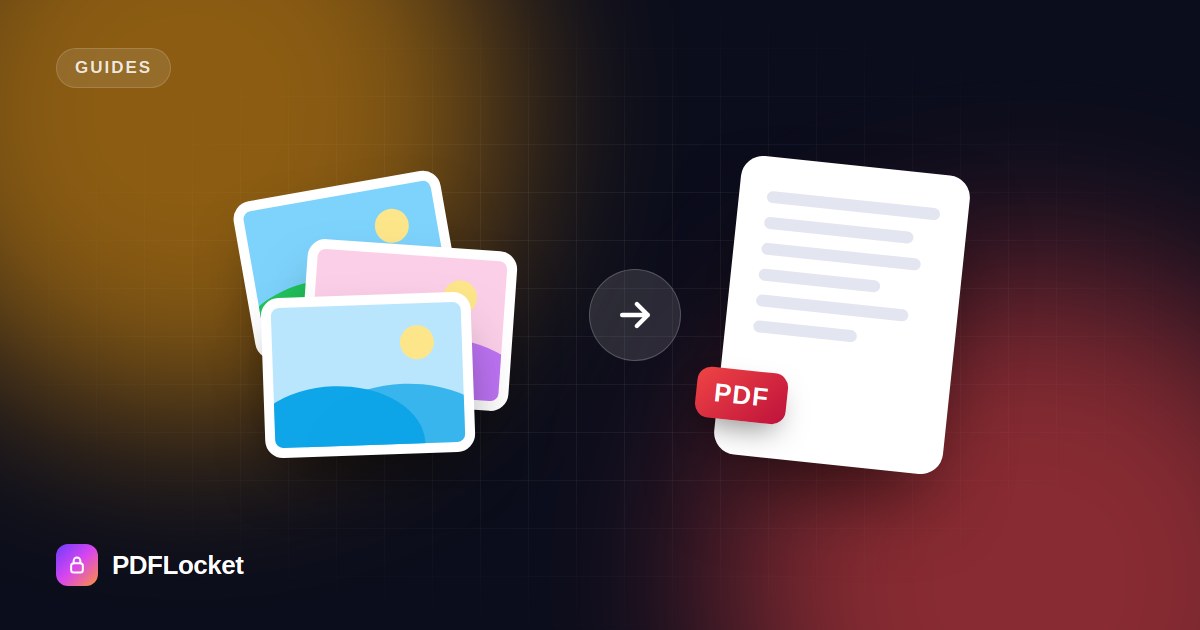
Forms, offices and universities often ask for “a single PDF”. What you actually have is a pile of phone photos: the front and back of an ID card, six receipts, three pages of handwritten notes. Here’s how to turn them into one tidy document.
Convert images to PDF in four steps
- Open JPG to PDF.
- Click Select images or drop them in. JPG, PNG, WEBP and TIFF all work.
- Drag the thumbnails into the order you want the pages to appear.
- Choose your options and click Convert to PDF.
Choosing the right options
Page size
- Fit image: each page is exactly the size of its photo. Best for screenshots, artwork or anything you’ll only view on a screen.
- A4: the standard paper size in India, Europe and most of the world. Choose this if the document might be printed or submitted to an official portal.
- Letter: the standard in the US and Canada.
Orientation
Use portrait for documents and receipts, and landscape for wide photos, slides or spreadsheets. The image is scaled to fit the page without being cropped or stretched.
Margin
None uses the whole page. Small or Big adds white space around each image, which looks cleaner when printed and keeps content away from the printer’s edge.
One PDF or several
When you upload multiple images, Merge all images into one PDF is on by default. Turn it off to get a separate PDF for each image, delivered together in a ZIP.
Tips for better-looking results
- Shoot from directly above, in good light, with the page filling most of the frame.
- Crop before converting. Your phone’s built-in editor can crop away the table or floor around the page.
- Mind the file size. A modern phone photo can be 3–5 MB. Twenty of them make a heavy PDF. If a portal has an upload limit, take photos at a lower resolution or send fewer pages per file.
- Name the file clearly, e.g.
Rahul-Sharma-ID-Proof.pdf. It helps whoever receives it.
Common uses
- Application documents (ID, address proof, certificates) for visa, bank or job portals
- Expense claims with several receipts
- Turning handwritten notes or whiteboard photos into a study pack
- Sharing a photo series as one easy-to-open file
Frequently asked questions
Does it reduce image quality? No. Images are placed into the PDF at their original resolution.
Can I convert screenshots? Yes. PNG screenshots work well. Pick Fit image to keep them pixel-sharp at their exact size.
Is there a limit? You can add up to 20 images at once, with a 100 MB total upload.
Keep reading
All articles
How to Convert Word to PDF Without Losing Formatting
Fonts swapped, tables shifted, images jumped to the next page? Here's how to turn a Word document into a PDF that looks exactly like the original — on any device.
How to Convert a PDF to an Editable Word Document
Need to change a contract, update an old CV or reuse text from a report? Here's how to turn a PDF into an editable DOCX — and what to expect from the result.
How to Sign a PDF Online in Under a Minute
No printer, no scanner, no pen. Type, draw or upload your signature, drop it on the page and download the signed PDF — here's exactly how.