How to Scan Documents With Your Phone and Save Them as PDF
Your phone is a better scanner than you think. Get sharp, readable, upload-ready PDFs of certificates, forms and receipts — no scanner required.
PDFLocket Team
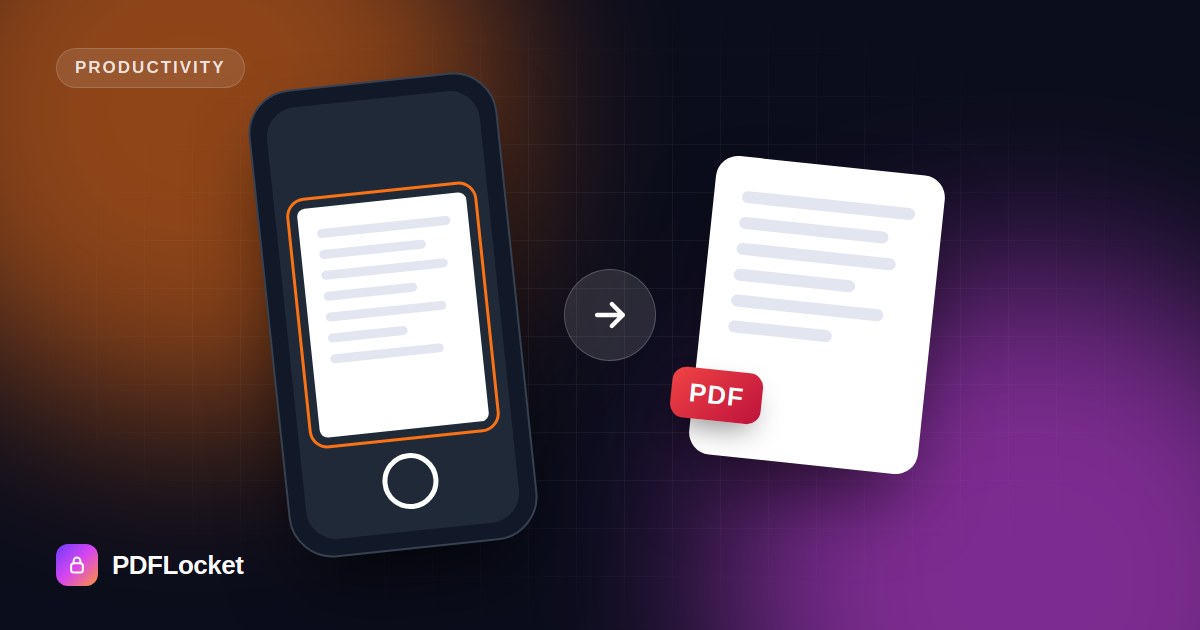
Most of us don’t own a scanner any more, and we don’t need one. A modern phone camera captures more detail than a typical office scanner. The difference between a muddy photo and a crisp, professional-looking scan comes down to a few habits.
Step 1: Set up the shot
- Light: daylight from a window is ideal. Avoid the overhead light directly above you, because your phone will cast a shadow on the page.
- Background: put the paper on a dark, plain surface. The contrast helps your phone find the page edges.
- Angle: hold the phone parallel to the page, directly above it. Tilted shots turn rectangles into trapezoids.
- Flatten: press curled pages under the edges of a book, or use a sheet of clear plastic.
- Focus: tap the screen on the text before shooting, and hold still.
Step 2: Use the built-in scanner if you have one
- iPhone: in the Notes app, tap the camera icon → Scan Documents. It detects edges, straightens the page and boosts contrast automatically. The Files app has the same feature (⋯ → Scan Documents).
- Android: Google Drive → + → Scan. Many Samsung, Xiaomi and OnePlus phones also have a document mode in the camera app.
These tools crop and straighten for you, and they can save straight to PDF.
Step 3: Combine photos into one PDF
If you took normal photos, or need to combine scans from different apps:
- Open JPG to PDF in your phone’s browser.
- Select the photos from your gallery.
- Drag them into page order.
- Choose A4 and a small margin for a document that looks scanned, then tap Convert to PDF.
Step 4: Check before you send
- Zoom in on the smallest text, such as a certificate number, and make sure it’s readable.
- Make sure no fingers, shadows or table edges are visible.
- Check the page order, especially front/back pairs like ID cards.
- Check the file size if you’re uploading to a portal with a limit.
Bonus: sign without printing
Received a form that needs your signature? Don’t print it. Open it in Sign PDF, add your signature and send it back. It’s faster and looks cleaner than a scan of a printout.
Quick checklist
- Window light, no shadow
- Dark background, phone parallel to the page
- Cropped and straightened
- One PDF, pages in order
- Text readable when zoomed in
Keep reading
All articles
PDF vs Word: Which Format Should You Send?
CV, invoice, contract draft, assignment? Picking the right format avoids formatting disasters and awkward back-and-forth. A simple rule of thumb, with examples.
How to Convert Word to PDF Without Losing Formatting
Fonts swapped, tables shifted, images jumped to the next page? Here's how to turn a Word document into a PDF that looks exactly like the original — on any device.
How to Convert a PDF to an Editable Word Document
Need to change a contract, update an old CV or reuse text from a report? Here's how to turn a PDF into an editable DOCX — and what to expect from the result.